Git Workshop 2026su
Table of Contents
1. Mental Model Review: Commits, Branches, and References
Recap from Part 1
- Commits: Snapshots of repository state with hash id and parent links.
- Branches: Lightweight, movable pointers to specific commits.
HEAD: Your current location indicator (where you are writing next).- Remote-tracking Branches: Local references that mirror remote branch tips after fetch/pull (e.g.,
origin/main).
Core Key Insight
:::center Branches do not contain commits. Branches point to commits, and commits point backward to their parents. :::
Visualizing the Graph
git log --graph --oneline --decorate --all
What this shows you:
- Exact history topology and branch divergence.
- Current position of
HEADrelative to local and remote tracking branches.
Detached HEAD State
The Concept:
Checking out a specific commit instead of a branch detaches HEAD from any branch name.
git checkout abc1234
# HEAD now points directly to a commit
Warning: New commits created here can become unreachable from normal branch names once you checkout another branch.
Quick Recovery Options
The safest move is to give the detached state a name before you leave it:
# Save state immediately by creating a branch from where you are
git checkout -b new-branch-name
Tip: We will come back to deeper recovery (e.g., when you have already switched away) in Section 6 "Git Reflog".
A Tiny Example
git checkout abc1234        # HEAD detaches
# ... experimental commit X ...
git checkout -b try-x       # X is now safely on branch "try-x"
Understanding References
Reference Types
| Type | Example | Behavior |
|---|---|---|
| Branch | main, feature/login |
Moves forward dynamically with new commits |
| Tag | v1.0.0, release-2.0 |
Static snapshot marker; never moves |
| Remote-tracking | origin/main |
Local mirror of remote state, updated by fetch/pull |
| Special | HEAD, MERGE_HEAD |
Internal operational pointers |
Useful Reference Shortcuts
HEAD~1orHEAD^: Direct parent of current commitHEAD~2: Grandparent of current commitmain~3: Three commits back from the tip of the main branchorigin/main@{yesterday}: State of the tracking branch 24 hours ago
G   H   I   J
 \ /     \ /
  D   E   F
   \  |  / \
    \ | /   |
     \|/    |
      B     C
       \   /
        \ /
         A
A =      = A^0
B = A^   = A^1     = A~1
C = A^2
D = A^^  = A^1^1   = A~2
E = B^2  = A^^2
F = B^3  = A^^3
G = A^^^ = A^1^1^1 = A~3
H = D^2  = B^^2    = A^^^2  = A~2^2
...
2. Merge Strategies and Team Integration
How git merge Actually Works
Before talking about strategies, it helps to understand the underlying algorithm.
Almost every git merge is a three-way merge: Git finds the merge base (latest common ancestor of the two branches) and combines changes from both sides relative to that base.
        A---B---C   (main)
         \
          D---E    (feature)

Merge base: A
"Left side"  changes : A -> C
"Right side" changes : A -> E
Three-way merge combines both onto the result.
Key idea: Whether the result is a fast-forward, a no-ff merge commit, or a squashed single commit is a question of how the result is recorded, not which algorithm is used.
Integration Choices Overview
Fast-Forward Merge (--ff)
When the target branch has not moved since the source branch started, no actual three-way combination is needed. Git simply slides the branch pointer forward.
Before: A---B---C (main)
                 \
                  D---E (feature)
After:  A---B---C---D---E (main, feature)
No-Fast-Forward Merge (--no-ff)
Forces a real merge commit even when fast-forward is possible. The feature branch stays visible as a "bubble" in the graph.
Before: A---B---C (main)
                 \
                  D---E (feature)
After:  A---B---C-------M (main)
                 \     /
                  D---E   (feature)
Squash Merge (--squash)
Condenses all incoming changes into a single brand-new commit on the target branch. The feature branch history is not recorded on main.
Before: A---B---C (main)
                 \
                  D---E---F (feature)
After:  A---B---C---G (main)        # G = D+E+F squashed
Decision Strategy Matrix
| Strategy | Best Use Case | History Style | Extra Commit? |
|---|---|---|---|
Fast-Forward (--ff) |
Short-lived linear branches | Seamless line | No |
No-FF (--no-ff) |
Strict Feature/PR tracking | Grouped graph (bubble) | Yes (merge commit) |
Squash (--squash) |
Noisy local feature commits | Compact line | Yes (squashed commit) |
| Rebase + Merge | Want clean linear history but main moved | Seamless line | Optional |
All four are powered by the same three-way merge engine — they only differ in what kind of commit (if any) is produced.
Team Integration Workflows
Approach A: Linear History Preference
Keep the main line strictly straightforward. Clean chronological reading.
git checkout feature-branch
git rebase main
git checkout main
git merge feature-branch  # Results in a clean Fast-Forward
Approach B: Preserved Topology Preference
Explicitly show where work started, evolved, and was integrated.
git checkout main
git merge --no-ff feature-branch  # Guarantees a merge node
Worked Example
Suppose main has commits A-B-C and your feature branch has D-E branched from B.
# Snapshot 1: fast-forward not possible (main has C after B)
$ git checkout main
$ git merge feature          # creates merge commit M
# Result: A-B-C-M, with feature D-E pointing into M

# Snapshot 2: with --squash
$ git merge --squash feature
$ git commit -m "feat: add feature X"
# Result: A-B-C-G (single squashed commit, feature branch unchanged)

# Snapshot 3: with rebase first, then merge
$ git checkout feature && git rebase main   # D,E -> D',E' on top of C
$ git checkout main && git merge feature    # fast-forward to E'
# Result: A-B-C-D'-E' (clean linear)
Discussion Questions
- Which result is easiest to revert if the feature breaks production?
- Which result is easiest for a new reader of the project history?
- Which result hides the fact that a feature branch ever existed?
3. Rebase for Clean Feature Branches
The Mechanics of Rebase
Rebase updates the starting parent commit of your branch, replaying your local changes sequentially on top of a new base commit.
Before Rebase:
A---B---C  (main)
     \
      D---E  (feature)

After 'git rebase main':
A---B---C  (main)
         \
          D'---E'  (feature)
Note:
D'andE'contain identical code changes toDandE, but carry distinct hash signatures and unique parent identifiers.
Rebase Execution Steps
# Step 1: Update your local tracking coordinates
git checkout main && git pull

# Step 2: Begin replay process
git checkout feature/my-feature
git rebase main

# Step 3: Handle individual files if conflicts occur, then proceed
git add conflict_resolved.txt
git rebase --continue
Rebase Interruption Controls
git rebase --continue: Continue replaying commits after a conflict resolution.git rebase --skip: Drop the current conflicting commit entirely.git rebase --abort: Instantly halt and return your branch to pre-rebase status.
Why One Rebase Can Stop Multiple Times
Each replayed commit is applied on top of the new base in order. If commit D touches the same lines as recent main changes, you resolve once. If commit E also touches those lines, you resolve again. Each resolution is per-commit, not per-rebase.
Rebase plan: D -> E onto C
[step 1/2] applying D ...        CONFLICT in src/api.ts
   ->  fix, git add, git rebase --continue
[step 2/2] applying E ...        CONFLICT in src/api.ts
   ->  fix, git add, git rebase --continue
Successfully rebased and updated refs/heads/feature.
The Cardinal Rule of Rebase
:::center Never rebase commits that have already been pushed to a shared public repository. :::
If you must update a remote branch after rebasing your own feature work, protect teammates' unseen commits:
git push --force-with-lease # Rejects push if remote has unseen changes
Try It: Mini Rebase Drill
# Setup
git init demo && cd demo
echo "v1" > a.txt && git add . && git commit -m "init"
git checkout -b feature
echo "feature-line" >> a.txt && git commit -am "feat: add line"
git checkout main
echo "main-line"    >> a.txt && git commit -am "fix: hotfix"

# Now rebase feature onto main and resolve the conflict
git checkout feature
git rebase main
# Edit a.txt to keep both lines, then:
git add a.txt && git rebase --continue
git log --graph --oneline --all
4. Interactive Rebase: Editing Local History
Complete Control Over Commits
Interactive rebase (git rebase -i) acts as a local history editor before pushing your updates up to code review.
# Open interactive configuration for the last 4 commits
git rebase -i HEAD~4
Command Directives Reference
\begingroup
\scriptsize
\renewcommand{\arraystretch}{0.85}
\setlength{\tabcolsep}{4pt}
\arrayrulewidth=0.4pt
| Directive | Alias | Intended Outcome |
| --- | --- | --- |
| pick | p | Keep the commit exactly as it is |
| reword | r | Keep the code changes but rewrite the log message |
| edit | e | Stop at this commit to modify files or split it |
| squash | s | Combine changes into previous commit, merging messages |
| fixup | f | Combine changes into previous commit, discarding this message |
| drop | d | Erase this specific commit completely from history |
\endgroup
Common History Edits
Workflow 1: Squashing Noise
Turn multiple intermediate "work-in-progress" commits into a clean historical entry.
# Todo list modification example
pick abc1234 Add login form structure
f    def5678 Fix layout typo
f    ghi9012 Add input verification rules
Workflow 2: Splitting a Monolithic Commit
Break one large commit into small, atomic context pieces.
# 1. Mark 'edit' next to the targeted commit in the interactive menu
edit abc1234 Implement complete profile module

# 2. When Git pauses at the commit, step back one snapshot:
git reset HEAD~1

# 3. Component Stage and Commit separately
git add component_a.js && git commit -m "Profile Part 1: Logic"
git add component_b.js && git commit -m "Profile Part 2: Interface"

# 4. Resume the rebase chain
git rebase --continue
Workflow 3: Reordering Commits
Sometimes the story of the branch matters: tests first, then implementation. Just rearrange the lines in the todo editor.
# Before                            # After (just reorder pick lines)
pick a1 feat: add login impl        pick c3 test: add login tests
pick b2 fix: small typo             pick a1 feat: add login impl
pick c3 test: add login tests       pick b2 fix: small typo
If a reorder produces a conflict, treat it like a normal rebase conflict: resolve,
git add,git rebase --continue.
Try It: Clean a Messy Branch
# Setup a messy branch
git init demo-irebase && cd demo-irebase
echo "v1" > app.txt && git add . && git commit -m "init"
echo "feat" >> app.txt && git commit -am "Add featurex"     # bad msg
echo "fix" >> app.txt && git commit -am "WIP"                # bad msg
echo "fix" >> app.txt && git commit -am "fixup typo"         # noise

# Now clean it up in one rebase
git rebase -i HEAD~3
#   reword Add featurex        -> "feat: add feature X"
#   reword WIP                 -> "feat: continue feature X"
#   fixup  fixup typo
Safety Notes
- Interactive rebase rewrites commit IDs. Use it freely on private local work.
- Be careful after pushing — coordinate with teammates or use
--force-with-lease. - If something goes wrong,
git reflogis your safety net (Section 6).
5. Cherry-Pick: Moving Selected Commits
Targeting Specific Commits
Cherry-pick isolates single commits from other timelines and applies them directly on top of your current branch. The applied commit gets a new hash (different parent), so the original is copied, not moved.
Before:
A---B---C (main, HEAD)
     \
      D---E---F (feature)

After 'git cherry-pick E':
A---B---C---E' (main, HEAD)
     \
      D---E---F  (feature, unchanged)
:::center "I need this precise fix, without merging that entire unfinished branch." :::
# Extract a singular change onto your active branch
git cherry-pick abc1234
Practical Application Scenarios
- Hotfixing: Pulling a security fix directly from an ongoing testing branch into production.
- Backporting: Moving bug fixes from current development releases to legacy support branches.
- Recovery: Salvaging valid logic structures from a feature track that was abandoned.
Range and Automation Flags
# Single commit
git cherry-pick abc1234

# Inclusive range (oldest^..newest, both ends included)
git cherry-pick abc1234^..def5678

# Replay all commits reachable from master but not from HEAD
git cherry-pick ^HEAD master

# Stage changes without committing — lets you edit before commit
git cherry-pick -n abc1234

# Conflict controls
git cherry-pick --continue
git cherry-pick --abort
git cherry-pick --skip
Worked Example: Backporting a Bug Fix
# main has moved on; v1.x is a long-lived release branch
$ git log --oneline main -3
e1f2a3b fix: null pointer in parser          <-- we want this on v1.x
a7c8d9e feat: rewrite parser engine
b3c4d5e feat: new config format

$ git checkout v1.x
$ git cherry-pick e1f2a3b
# If parser.c diverged a lot, you may hit conflicts:
#   fix the file, then:
$ git add parser.c
$ git cherry-pick --continue
Gotcha: Repeated cherry-picks of the same change across long-lived branches can create duplicate-looking commits with different hashes. When you eventually merge, Git usually handles it — but reviewers may be confused. Reference the original commit hash in the message to leave a trail.
6. Git Reflog: Recovery and Repair
The Local Safety Net
Reflog tracks every single movement of HEAD and branch updates across your local development space.
:::center If a commit was created locally within the past 90 days, Reflog can find and restore it. :::
Key Mechanics
- Reflog is entirely local; it never travels via
git pushorgit clone. - Entries expire after configurable time limits; common defaults are 90 days for reachable entries and 30 days for unreachable ones.
Essential Diagnostics
# View complete sequential history of HEAD shifts
git reflog

# Sample Output Format:
# abc1234 HEAD@{0}: reset: moving to HEAD~2
# def5678 HEAD@{1}: commit: Add database drivers
Emergency Recovery Solutions
Scenario A: Accidental Hard Reset Recovery
# Recover from an accidental destructive command like:
    git reset --hard HEAD~3
    git reflog
# Identify pre-reset snapshot state hash (e.g., HEAD@{1})
    git reset --hard HEAD@{1}
Scenario B: Restoring an Accidentally Deleted Branch
git reflog
# Locate the last active commit hash belonging to the deleted branch
git branch feature-restored HEAD@{2}
Scenario C: Undoing a Bad Rebase
# You just rebased, and the result is wrong.
git reflog
#   abc1234 HEAD@{0}: rebase finished: returning to refs/heads/feature
#   def5678 HEAD@{1}: rebase: pick "feat: add login"
#   ...
#   1a2b3c4 HEAD@{5}: checkout: moving from main to feature   <-- pre-rebase state
git reset --hard HEAD@{5}
Scenario D: Recovering an Amended-Away Commit
git commit --amend -m "oops, lost the original message"
# Original commit is unreachable but still in reflog
git reflog show HEAD
# 9f8e7d6 HEAD@{1}: commit: original useful message
git show 9f8e7d6                      # inspect
git cherry-pick 9f8e7d6               # bring it back
Safety Rule of Thumb
:::center When unsure, create a rescue branch FIRST. Branches are free; lost commits are not. :::
git switch -c rescue HEAD@{1}   # snapshot the suspicious state to a branch
# now you can experiment without fear
7. Stash, Worktrees, and Partial Staging
Git Stash: Temporary Workspace Suspension
Save incomplete modifications without generating messy commits when context switching.
# Stash tracked modifications
git stash

# Stash including new, untracked workspace files
git stash -u

# Describe your stashed changes clearly
git stash push -m "In-progress API refactor"

# Restore the most recent stash (and drop it from the stack)
git stash pop

# Apply without dropping
git stash apply stash@{1}

# Review all saved stash layers
git stash list

# Drop a specific stash entry
git stash drop stash@{0}
Real-World Scenario: The Surprise Hotfix
# Working on a half-finished feature when an urgent bug report lands
$ git status
On branch feature/profile
Changes not staged for commit:
  modified:   src/profile.tsx
  modified:   src/api/user.ts

$ git stash push -m "WIP: profile UI redesign"
Saved working directory and index state On feature/profile: WIP: profile UI redesign

# Switch, fix, ship
$ git switch main && git switch -c hotfix/login-crash
# ... fix, commit, PR ...

# Back to feature
$ git switch feature/profile
$ git stash pop                       # restores the modifications
Git Worktree: Multi-Branch Environments
Check out multiple branches of the same repository simultaneously in separate directories. Unlike stash, your files stay where they are — you just open a second working directory pointing at a different branch.
:::center Review a PR or execute a hotfix without interrupting or clearing your active workspace. :::
# Mount a separate branch into a sibling directory
git worktree add ../project-hotfix hotfix/api-bug

# See all active worktrees
git worktree list

# Safely tear down directory after finishing the fix
git worktree remove ../project-hotfix
Stash vs Worktree: When to Use Which?
| Use stash when... | Use worktree when... |
|---|---|
| Interruption is short (minutes) | Interruption is long (hours/days) |
| You just need to switch branch and come back | You need to run both branches side-by-side (e.g., diff servers) |
| Single working tree is enough | You want IDE windows open on two branches |
Partial Staging (Patch Mode)
Interactively break down changes within a single modified file into distinct commits — invaluable when one editing session accidentally mixed two unrelated fixes.
git add -p # Evaluates code block hunks sequentially
Quick Response Map
y: Stage this code hunk.n: Skip staging this code hunk.s: Split the current hunk into even smaller evaluation pieces.e: Manually edit the hunk before staging.q: Exit immediately; preserve current staging configuration.
Example Flow
$ git diff src/utils.ts
@@ -10,3 +10,8 @@ function formatDate(d) { ... }
+function formatTime(t) { ... }          <-- belongs to "feat: time"
@@ -34,1 +39,2 @@
-  return null;
+  return undefined;                       <-- belongs to "fix: nullish"

$ git add -p src/utils.ts
Stage this hunk [y,n,q,a,d,s,e,?]? y     # stage formatTime
Stage this hunk [y,n,q,a,d,s,e,?]? n     # skip nullish fix
$ git commit -m "feat: add formatTime helper"
$ git add -p src/utils.ts
Stage this hunk [y,n,q,a,d,s,e,?]? y
$ git commit -m "fix: return undefined instead of null"
8. Lazygit: Visual Terminal Workflow
Terminal Interface for Git
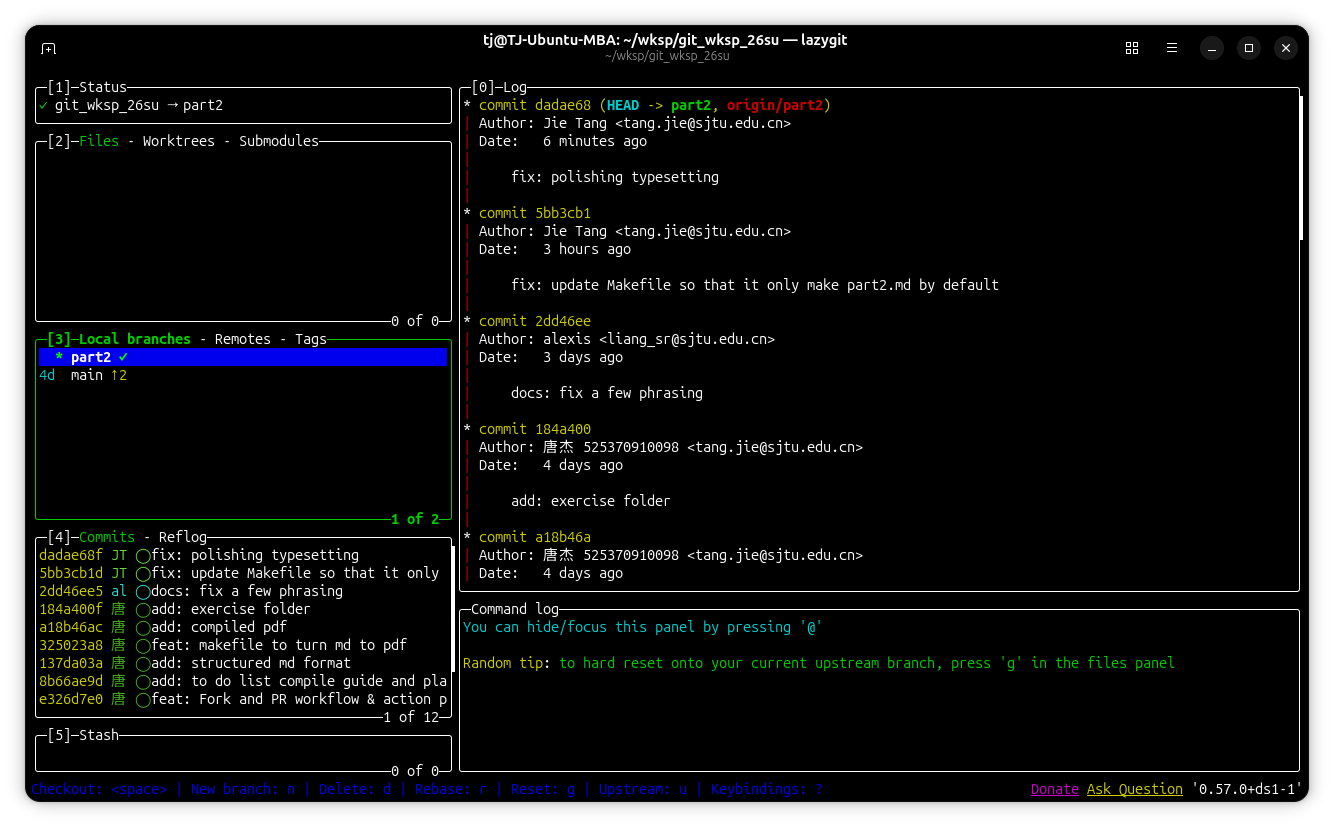
Lazygit is a highly responsive keyboard-driven terminal UI that maps complex graph configurations onto clear layouts.
:::center Maintains structural clarity without hiding underlying Git CLI mechanics. :::
# Launch the interface directly in your repository folder
lazygit
Primary Interface Sections
The interface is split into a side panel stack (left) and a main viewport (right). Each side panel maps to a numbered shortcut (1–5).
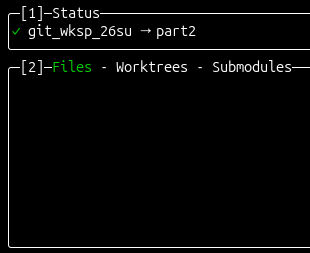
[1]Status: current repo & branch, ahead/behind indicators.[2]Files: working tree, staged/unstaged diffs, conflicts.[3]Local branches: switch, merge, rebase, fast-forward.[4]Commits / Reflog: graph history & undo timeline.[5]Stash: stash list with apply / pop / drop.
Side Panel
The upper side panel gives an overview of the current repository state, including the active branch, its status, and any pending changes.
Branches Panel
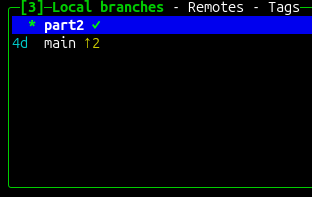
Press 3 to focus this panel.
Branch Operations Cheat Sheet
| Key | Action |
|---|---|
space |
Checkout the highlighted branch |
n |
Create a new branch from current |
M |
Merge into current branch |
r |
Rebase current branch onto highlighted |
d |
Delete branch |
f |
Fast-forward without checkout |
Commits Panel & Interactive Rebase
Press 4 to enter the commits panel. This is where lazygit shines for rewriting history.
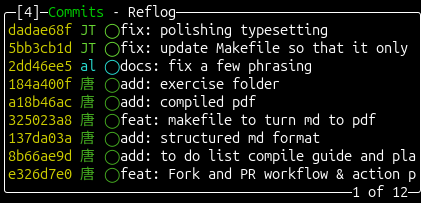
Commits Panel Operations Cheat Sheet
| Key | Action |
|---|---|
space |
Checkout commit (detached HEAD) |
e / r |
edit / reword this commit (interactive rebase) |
s / f |
squash / fixup into the commit below |
d |
drop this commit |
p |
pick (revert a drop) |
c |
Cherry-pick selected commit(s) |
g |
Reset (soft/mixed/hard) to commit |
Ctrl+j / Ctrl+k |
Move commit down / up (reorder) |
Lazygit performs every action as a real Git command — press
@to toggle the command log and watch the underlyinggit rebase --interactive ...invocation.
Diff / Log Main Viewport
The right pane reflects whatever the active side panel selected — useful for reading commits, diffs, or staging hunks line-by-line.
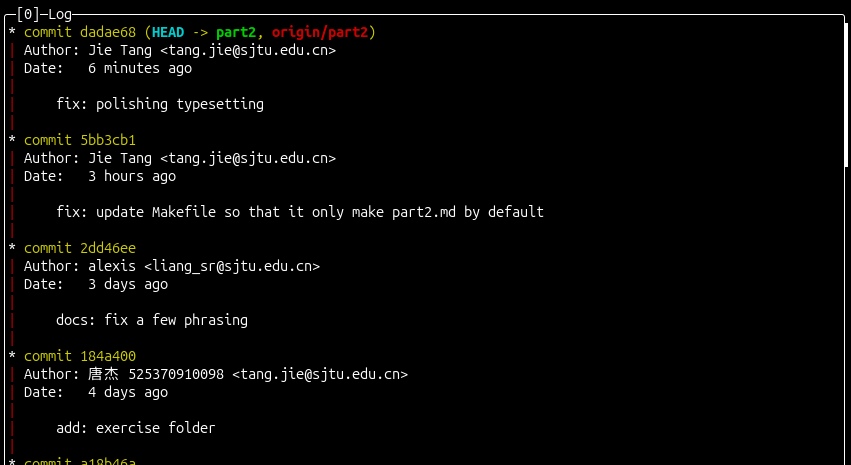
When the Files panel is focused, space here stages an individual file, hunk, or even a single line. Press Enter on a modified file to drop into hunk-level review:
        [Files panel]               [Diff viewport]
   M  src/api/auth.ts        |  @@ -42,7 +42,7 @@
   ?? notes.todo             |  -    return token;
                             |  +    return signedToken;
                             |       }
Command Log: The Educational Window
Press @ (or look at the bottom panel) to see exactly what Git command lazygit just ran.
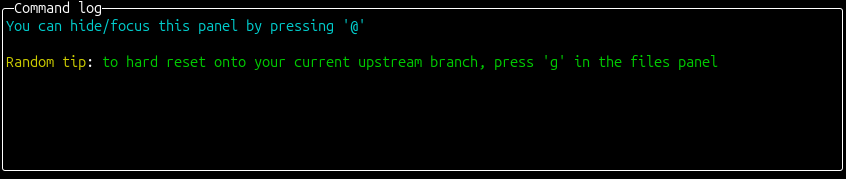
Why this matters: lazygit is a teacher, not just a tool. Every shortcut maps to a real
git ...invocation — read along to internalize the CLI.
Common Operations Cheat Sheet
| Workflow | Lazygit Keys | Underlying Git |
|---|---|---|
| Stage all & commit | Files → a, then c |
git add . && git commit |
| Amend last commit | Files → A |
git commit --amend --no-edit |
| Squash commits | Commits → s × N |
git rebase -i HEAD~N |
| Cherry-pick range | Commits → Shift+c then Shift+v on target |
git cherry-pick A^..B |
| Resolve conflict | Files → Enter on conflicted file |
manual edit + git add |
| Force-with-lease push | Branches → P then confirm |
git push --force-with-lease |
| Recover from oops | 4 → tab to Reflog → space |
git reset --hard HEAD@{n} |
Navigation Basics
k/jor arrows : Move up and down within active panels.H/LorTab: Cycle between panels.Space: Toggle staging for a file / hunk / single line.c: Open the commit message editor.@: Toggle the command log window.z: Undo last operation (git resetto a reflog entry).?: Open the contextual help for the current panel.Escorq: Step back / exit the interface.
9. Remote Collaboration Policies
Keeping Remotes Organized
Fetch vs Pull Optimization
# Fetch: Downloads remote updates without modifying local working tracks
git fetch origin

# Pull: Combines fetch with merge or rebase, depending on configuration
git pull

# Clean Pull: Replays your local commits cleanly on top of incoming changes
git pull --rebase
git pull=git fetch+git merge(default) orgit rebase(with--rebase). Fetch first when you want to inspect before integrating.
Tracking Verification
# Match local branches with remote destinations explicitly
git push -u origin feature/auth

# Inspect tracking health and divergence distances
git branch -vv
Sample Output:
* main         abc1234 [origin/main] Fix memory leak
  feature/auth def5678 [origin/feature/auth: ahead 1, behind 2] Update tokens
ahead N: you have N commits the remote does not.behind N: the remote has N commits you do not.- Both ahead and behind : the branch has diverged — a plain
git pullwill produce a merge commit unless you--rebase.
Core Safety Controls
- Avoid raw
git push --force. Always protect your upstream target lines by usinggit push --force-with-lease. - Prohibited Action: Never execute history rewrites or force-pushes on long-lived default branches (e.g.,
main,master,develop). - Configure branch protection rules on the server (require PRs, status checks, signed commits) so policy is enforced, not just remembered.
Team Policy Checklist
- [x] Protected
main/master/dev(no direct push). - [x] All work on feature branches; PRs required.
- [x] Local noisy commits rebased or squashed before review.
- [x]
--force-with-lease, never plain--forceon shared remotes. - [x] Ask before rewriting any branch a teammate is using.
10. Fork and Pull Request Workflow
Shared Source Management
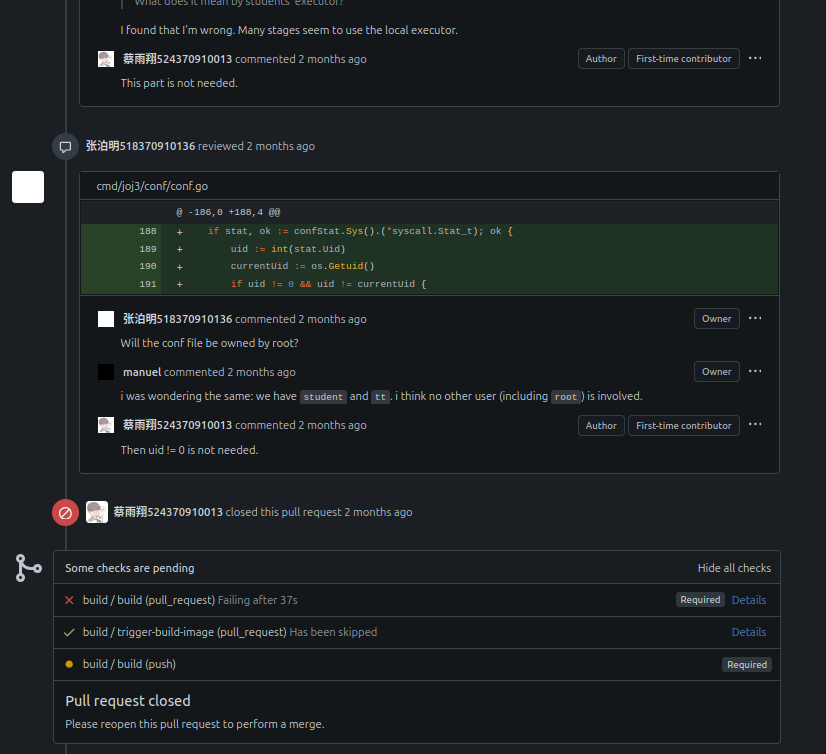
A Fork is an independent, server-side copy of a repository hosted under your personal namespace.
Repository Ecosystem Map
+---------------------------------------+
| Upstream Repository (Central/Original) |
+---------------------------------------+
                   ^
                   | Pull Request Submissions
                   |
+---------------------------------------+
| Origin Repository (Your Remote Fork)  |
+---------------------------------------+
                   ^
                   | Push / Pull Syncing
                   |
+---------------------------------------+
| Local Workspace (Your Computer)      |
+---------------------------------------+
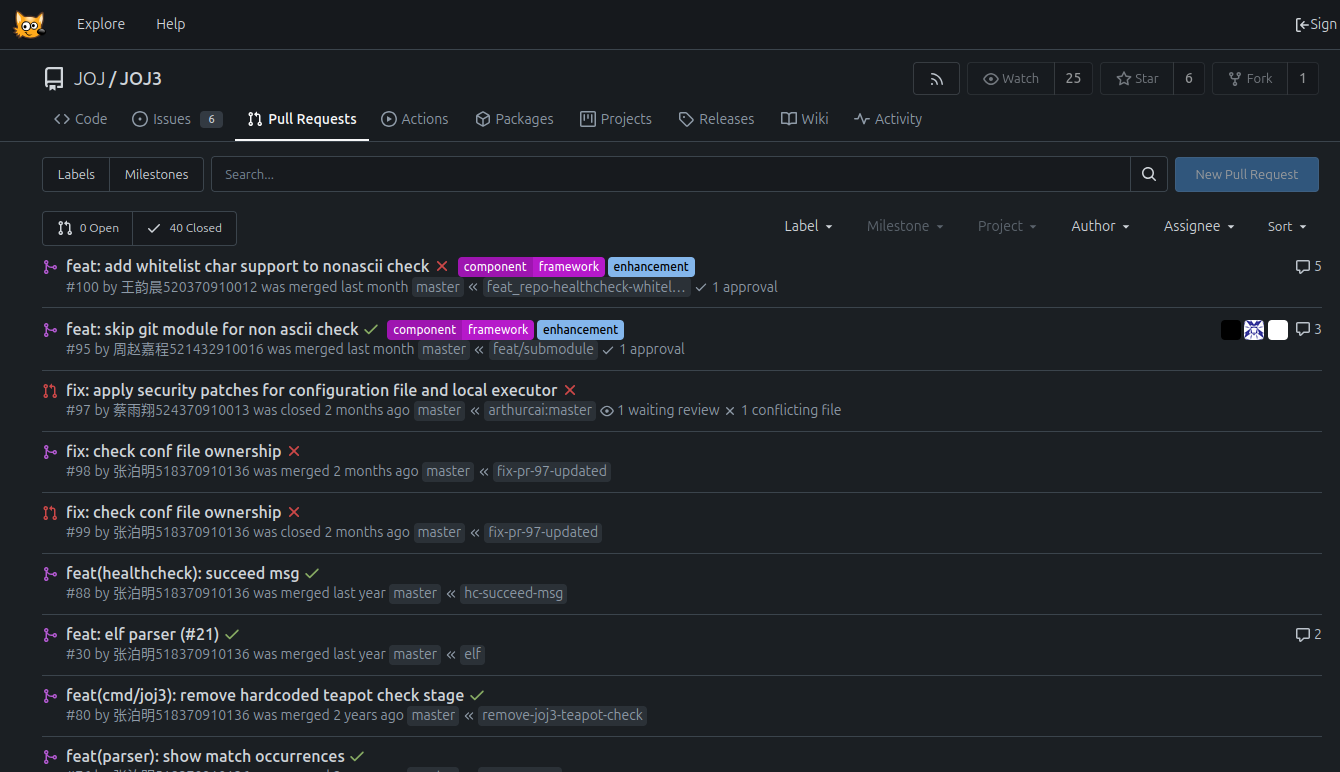
Step-by-Step Fork Deployment
# Step 1: Clone your personal fork
git clone https://github.com/YOUR_USERNAME/repository.git

# Step 2: Establish connection to the original project
git remote add upstream https://github.com/ORIGINAL_OWNER/repository.git

# Step 3: Synchronize with upstream changes before starting new work
git checkout main
git fetch upstream
git rebase upstream/main
git push origin main

# Step 4: Work on your isolated feature track
git checkout -b feature/contribution

# Step 5: Push and open a PR on the upstream repository
git push -u origin feature/contribution
# Then click "Compare & pull request" on GitHub
Keeping the Fork Healthy
# Periodically sync main with upstream so your PRs branch from the latest base
git fetch upstream
git checkout main
git merge --ff-only upstream/main   # fail loudly if main diverged
git push origin main
Tip: Always branch new feature work from a freshly synced
main. Diverged forks lead to messy PR diffs.
11. GitHub Actions: Automation Basics
Declarative Workflow Pipelines
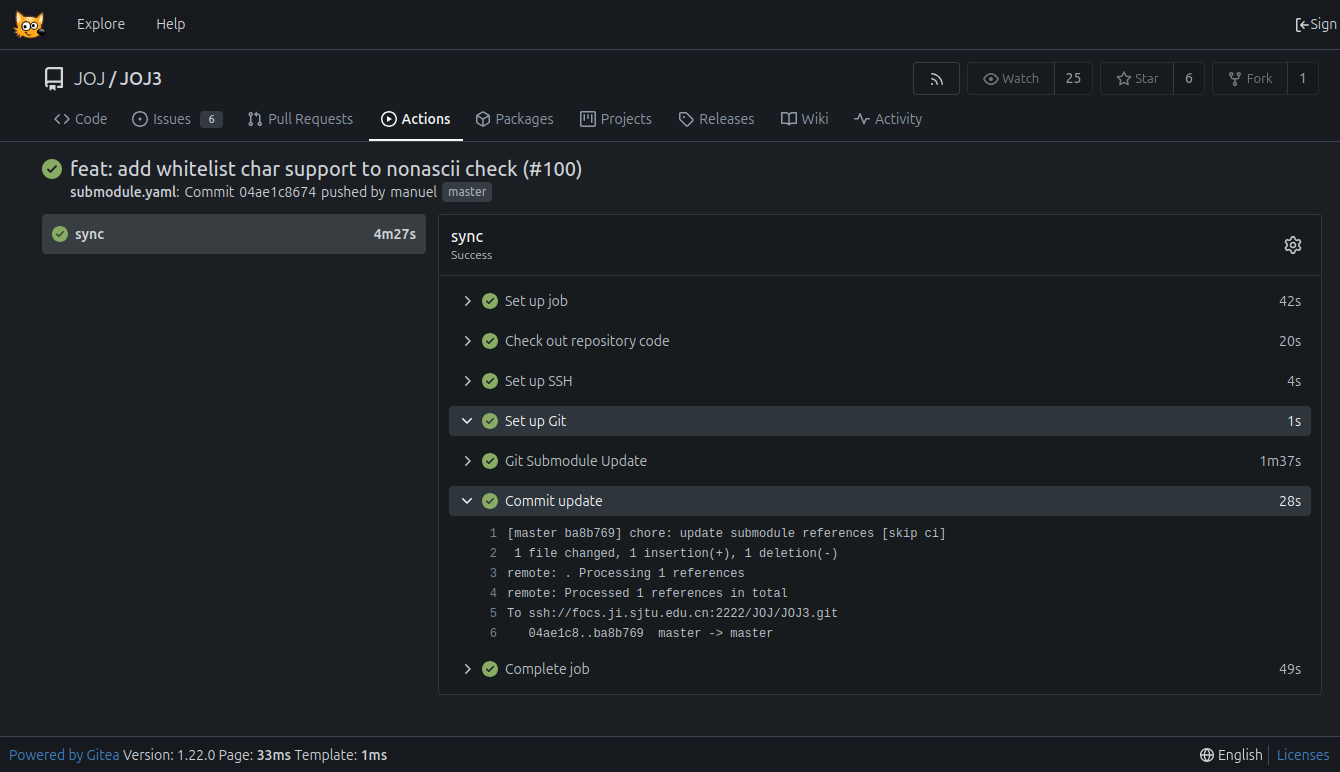
GitHub Actions listen for repository events (e.g., pushes, pull requests) to automatically trigger builds, test suites, and deployments.
| Core Concept | Functional Definition |
|---|---|
| Workflow | Automation blueprint script located within .github/workflows/*.yml |
| Event | The explicit trigger condition (e.g., push, pull_request) |
| Job | A sequence of steps executed on a clean virtual machine runner |
| Step | Individual tasks that execute console scripts or predefined actions |
Standard Continuous Integration Configuration
name: Project Verification Pipeline

on:
  push:
    branches: [main]
  pull_request:
    branches: [main]

jobs:
  test-suite:
    runs-on: ubuntu-latest
    steps:
      - name: Import Codebase Source
        uses: actions/checkout@v4

      - name: Initialize Runtime Environment
        uses: actions/setup-node@v4
        with:
          node-version: '20'

      - name: Execute Standard Testing
        run: |
          npm ci
          npm test
Production Workflow Best Practices
- Explicit Pinning: Use major tags for convenience (e.g.,
actions/checkout@v4) or full commit SHAs when you need stronger supply-chain control. - Concurrency Controls: Cancel older runs automatically when a developer pushes new updates to an active pull request:
concurrency:
  group: ${{ github.workflow }}-${{ github.ref }}
  cancel-in-progress: true
No comments yet. Share your thoughts below.